
Convert PDFs to Excel Spreadsheet
 Written by Sampsa Vainio
For freelancers and small business owners, managing financial documents can be a challenging task, especially when dealing with multiple formats like PDFs. SparkReceipt simplifies this process by enabling the easy conversion of PDF documents to Excel spreadsheets. This transformation is crucial for accurate expense management and streamlined bookkeeping.
Why Convert PDFs to Excel?
1. Enhanced Accessibility: Excel spreadsheets allow for easier manipulation and analysis of data compared to static PDF files. This enables quicker access to financial insights for business decisions.
2. Improved Accuracy: Manual data entry from PDFs to Excel introduces errors. SparkReceipt automates this process, minimizing mistakes and maintaining data consistency.
3. Time Efficiency: Converting documents manually consumes considerable time. SparkReceipt saves time, allowing focus on business growth rather than administrative tasks.
SparkReceipt's Features for PDF to Excel Conversion
SparkReceipt provides powerful tools for freelancers and small businesses:
OCR Technology: Advanced Optical Character Recognition accurately extracts data from PDF files, including amounts, dates, merchant names, taxes, and currencies.
Easy Export Options: Once processed, exporting to Excel is straightforward. SparkReceipt offers flexible data export options including PDF, CSV, and Excel formats.
Direct Links to Original Documents: Each Excel entry includes a direct link to the original PDF document for verification and reference.
Step-by-Step Guide to Using SparkReceipt
1. Upload Your PDFs
Begin by uploading PDF documents (invoices, receipts) directly through the web interface or mobile app. Users can add new expenses, income, or business documents. The receipt scanner feature also captures photos of paper documents.
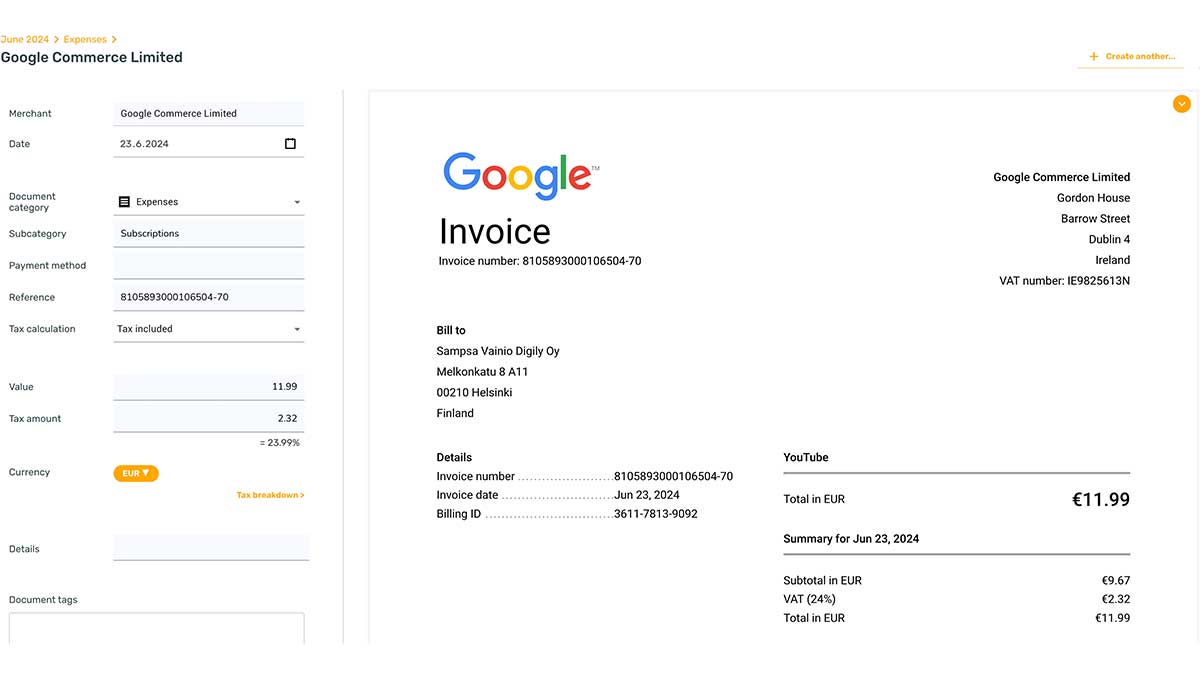
2. Automatic Data Extraction
SparkReceipt's AI-driven system will automatically identify and extract data (such as amount, date, merchant and tax) from the uploaded documents.
3. Reviewing and Editing Data
Before exporting, users review and correct information to ensure accuracy.
4. Exporting to Excel
Export organized data into an Excel spreadsheet with critical financial data and links to original PDFs:
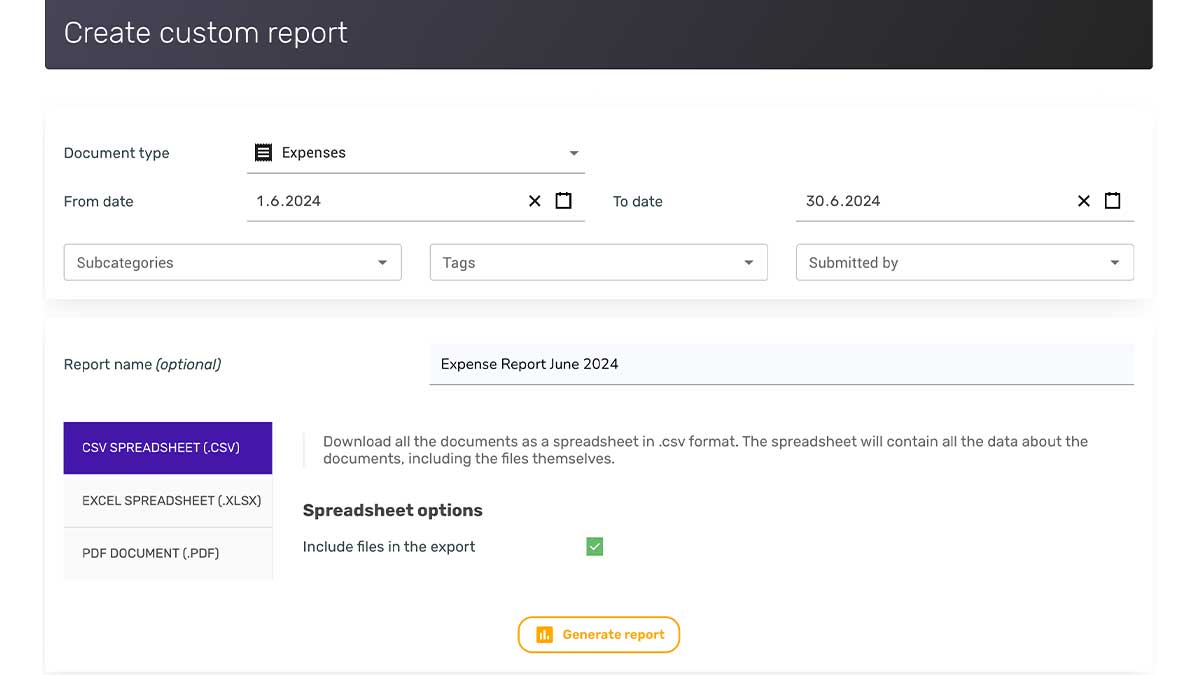
- Log in to SparkReceipt via browser
- Navigate to Reports in the web interface
- Select document type (expenses, income, bank statements, or other business documents)
- Select the report timeframe
- Filter documents by categories, tags, and people (optional)
- Name your report
- Select EXCEL SPREADSHEET as the report type
- Click Generate report to download
For receipt scanning into spreadsheets, see the guide on scanning receipts to Excel.
Conclusion
Converting PDFs to Excel streamlines bookkeeping and revolutionizes financial management for small businesses and freelancers. SparkReceipt offers a robust solution that saves time, reduces errors, and provides deeper financial insights.